Guide · updated 10 September 2026 · 7 min read
Google Search Console for Shopify blogs: setup and reports
Verify a Shopify store, submit its sitemap and build Search Console blog reports with complete windows, page filters and honest query limits.
Google Search Console tells a Shopify merchant whether Google discovered and indexed blog pages, which Search queries produced impressions and clicks, and which canonical URL received the data. Set it up on the public primary domain, submit Shopify's generated sitemap, then save a repeatable page-and-query view using completed data windows.
This guide follows current Google and Shopify documentation. Its downloadable report uses fictional data; no merchant Search Console property or Shopify settings were accessed for this tutorial.
Choose the property before verifying it
Search Console offers two website property types:
| Property | Includes | Verification | Good fit |
|---|---|---|---|
Domain, such as example.com |
All protocols and subdomains under the domain | DNS only | The store controls DNS and wants one complete property |
URL prefix, such as https://www.example.com/ |
Only URLs beginning with that exact protocol, host and optional path | HTML tag, Analytics, Tag Manager, file, DNS and other supported methods | Access is limited or one exact storefront prefix needs separate reporting |
Google generally recommends a Domain property when appropriate because it combines protocols and subdomains. A URL-prefix property is precise but easy to misconfigure: https://example.com/ does not include http://example.com/ or https://www.example.com/. Google property documentation, accessed 10 September 2026.
For a Domain property, copy the TXT or CNAME value from Search Console and add it at the DNS provider. For a Shopify-managed domain, DNS settings are under Settings → Domains → the domain → DNS settings → Add custom record. Do not remove another service's verification record. Verification persists only while Google can still find a valid token.
For a URL-prefix property, Shopify documents an HTML-tag route through theme.liquid. Use the exact method shown by Search Console and check the public homepage source. A storefront password can prevent a verifier or crawler from reaching the intended content.
Submit Shopify's generated sitemap
Shopify automatically creates https://your-domain.example/sitemap.xml and includes products, primary product images, pages, collections and blog posts. It updates the file when these resources change. International domains can have their own sitemaps, so submit the sitemap for the domain represented by the property.
In Search Console, open Indexing → Sitemaps, enter sitemap.xml and submit. Record the last read and status. The submission helps Google discover URLs; Google does not guarantee when or whether each URL is crawled or indexed. The storefront must be public enough for the crawler to access it. Shopify's sitemap instructions, accessed 10 September 2026.
Do not upload a second hand-built blog sitemap unless you have a documented reason. First confirm the Shopify root file points to the blog sitemap and contains the canonical article URLs.
Check indexing at two levels
Use the Page indexing report for patterns and URL Inspection for one page.
The Page indexing report separates Indexed and Not indexed URLs, then groups not-indexed URLs by reason. A not-indexed reason is not necessarily an error; alternate, duplicate or intentionally excluded URLs can be expected. Filter or inspect the examples belonging to the blog sitemap. Do not set 100% indexed as a target: Google says only canonical pages should be indexed.
For a specific missing post, inspect the full public article URL, then compare the user-declared and Google-selected canonicals. Record the indexed state, last crawl, discovery source and live test result. The Shopify blog indexing diagnostic maps those states to actions.
An accepted indexing request is a queue entry, not a successful indexing result. Google says crawling may take days to weeks and repeated requests do not make it faster. Google recrawl documentation, accessed 10 September 2026.
Build a blog-only Performance report
Open Performance → Search results and select the Web search type. Choose a completed date range. Search Console usually makes collected data available after two to three days, and the newest data can be preliminary, so note the report's own latest-complete state rather than assuming yesterday is final. Google's Search Console data documentation, accessed 10 September 2026.
A real report with only one available chart day
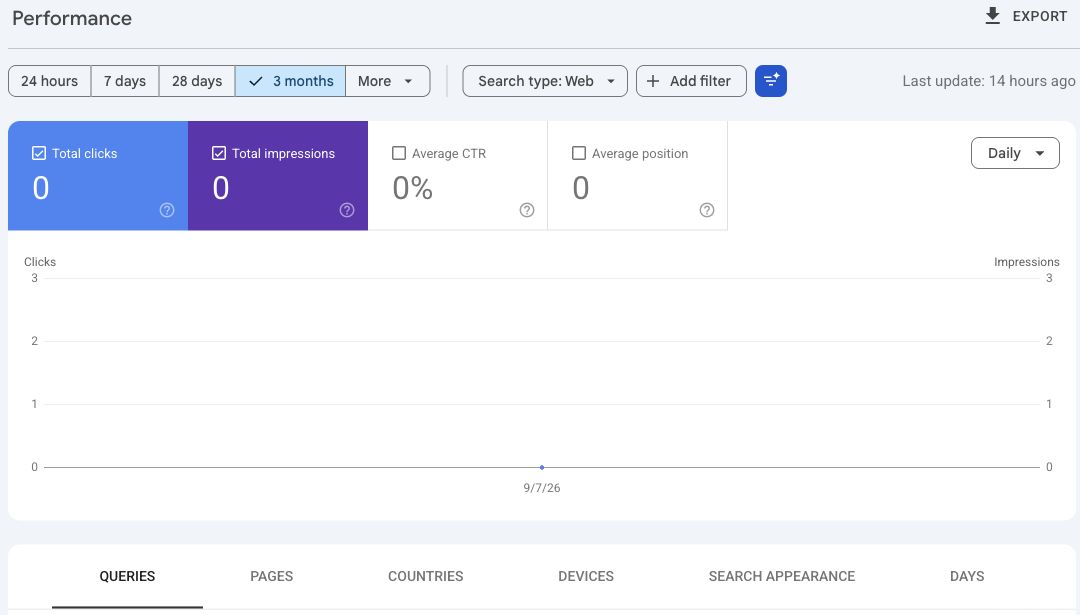
This sanitized capture was read on 10 September 2026 from the owned citelift.app marketing-site property, not a Shopify merchant property. The interface had 3 months selected, but the chart contained only one available date, 7 September, and said Last update: 14 hours ago. It showed 0 clicks, 0 impressions and no query rows for that limited available window. It is not evidence of three complete months with zero traffic, a post-release outcome or a Shopify merchant benchmark.
Add a page filter that matches the actual Shopify blog path. Common examples are:
- page URLs containing
/blogs/for the whole Shopify blog area, including blog landing pages; - page URLs containing
/blogs/news/for one blog handle; - exact URL for one article.
When you need posts only, use a regex matching /blogs/<blog-handle>/<article-handle> or filter from a maintained article-URL list. Google's Search Console filter documentation, accessed 10 September 2026.
Use the Pages tab first. For each canonical page, save clicks, impressions, click-through rate and average position. Then select a page row and open Queries to see the queries attributed to that page. Search Console generally assigns performance data to the canonical URL rather than a duplicate, so inspect the canonical when an expected page has no row.
Download the blank Search Console blog sheet. The synthetic report contains invented impressions, clicks and queries for a fictional store.
Separate branded and nonbrand demand
Branded queries include the store or product brand. Nonbrand queries describe the category, problem or buying decision without it. They answer different questions:
- Branded activity shows existing demand finding the store.
- Nonbrand activity shows discovery beyond explicit brand recall.
Where Search Console offers its branded/non-branded filter, Google says availability can depend on impression volume and classifications can be wrong. Review material terms manually and keep your rule with the export. Google Performance dimensions documentation, accessed 10 September 2026.
For a manual classification, keep a case-insensitive list of brand name, common misspellings and product-line names. Mark uncertain queries separately rather than forcing them into nonbrand. When the visible query table is sparse, report the classified visible rows and not a percentage of all impressions.
Respect query and table limits
Search Console suppresses anonymized queries to protect privacy and stores only top table rows. These omitted queries can remain in chart totals. Adding a query filter can therefore change totals, and the sum of visible rows may be below the chart.
Record both:
- the page-filtered chart total; and
- the sum of exported visible query rows.
Label the difference “unavailable in query rows,” not “other keywords.” Export gives you a stable file but does not recover every privacy-suppressed query. Search Console is an aggregated performance report with privacy and row limits, not a server log.
Compare the same property, page filter, search type, country/device conditions and number of complete days. A 28-day window against the prior 28 days is more defensible than “this month so far” against a complete month.
Use each report for its own question
| Question | Report | Limit |
|---|---|---|
| Did Google index this exact article? | URL Inspection | The live test cannot predict canonical selection or guarantee indexing |
| Are blog URLs broadly indexed? | Page indexing filtered by sitemap or examples | Example lists and report limits are not a complete audit of every condition |
| Which pages gained Search visibility? | Performance, Pages | Mostly canonical URL aggregation; Search only |
| Which visible queries led to impressions and clicks? | Performance, Queries | Anonymized and lower-row data can be omitted |
| Did a page appear in Google AI features? | Dedicated generative AI performance report | Impression-only; no query, click or surface split |
| Did a visit or purchase follow? | GA4, Shopify or Citelift | Different identity, consent and attribution rules |
Google's dedicated generative AI report includes AI Overview and AI Mode impressions and rolls them into overall Web performance. The Google AI features guide explains why you should not add those impressions to the Web total or infer queries and clicks the dedicated report does not expose.
Explain why Search Console differs from analytics
Search Console records Google Search impressions and clicks with its own canonicalization, privacy and processing rules. GA4 records tagged website behavior for users and sessions it can observe. Shopify records commerce and journey data under its definitions. Their dates can also use different time zones: Search Console labels daily data in Pacific Time, while Analytics uses the property's reporting time zone.
Do not expect a Search Console click to equal a GA4 session. JavaScript, consent, blockers, repeated clicks, redirects, canonical URLs and processing can all change counts. Use GA4 for Shopify blog traffic for landing sessions and the Shopify article attribution guide for Citelift's seven-day order credit.
Run a monthly review with an action log
For each blog page, record the evidence and one next action:
- indexed, gaining relevant nonbrand impressions: protect the URL and refresh facts when needed;
- indexed, impressions but weak alignment: inspect visible queries, title, opening answer and product fit;
- indexed, clicks but no tracked downstream behavior: check the analytics installation and next step on the page;
- not indexed: follow the inspection state rather than rewriting blindly;
- no data: distinguish a new property, filtered empty result, processing delay and measured zero.
The Shopify blog SEO checklist helps with page changes. Save the raw export and the decision log separately so a later result does not rewrite what you knew at the time.
Questions.
Should a Shopify store use a Domain or URL-prefix property?
Use a Domain property when you control DNS and want all protocols and subdomains in one property. It requires DNS verification. A URL-prefix property covers only the exact protocol, host and optional path but supports more verification methods.
Where is a Shopify store's sitemap?
Shopify automatically generates it at the root of each eligible store domain, such as https://example.com/sitemap.xml, and updates it when products, collections, pages, images or blog posts change.
Why do Search Console query rows not add up to chart totals?
Google omits anonymized queries for privacy and limits stored table rows. Query filters can therefore change totals, while the chart can include activity that has no visible query row.
Can Search Console show which blog post caused an order?
No. Search Console measures Google Search impressions and clicks. Use GA4 or Shopify journey data for later sessions and orders, and document each system's attribution rule.
Citelift is listed on the Shopify App Store: Citelift on the Shopify App Store.